
How to Connect your Central Transport LTL Integration
EZ Loader TMS supports the following API functionalities with supported LTL providers:
- Rating (Submitting a Rate (aka Quote) request and receiving a Rate Response)
- Dispatching (Submitting a Dispatch (aka Pickup) request and receiving a confirmation response)
- Tracking (Requesting a Load Tracking update after the shipment has been picked up by the Carrier and receiving a tracking update)
-
Information You’ll Need to Connect the Integration
- Central Transport API Access Code
- Central Transport Account Number
-
Follow the steps below to obtain your API Access Code and Account Number
-
Send an e-mail to webservices@centraltransport.com using the following template:
Central Transport,
Please generate an account code for Account # {INSERT CTII ACCOUNT NUMBER} to begin using the CTII web service APIs. Requests will come from the following IP address: 205.144.215.207
-
How to Locate Your Account Number on Central Transport's Website:
-
Navigate to https://mycentral.goctii.com/ and log in with your username and password.
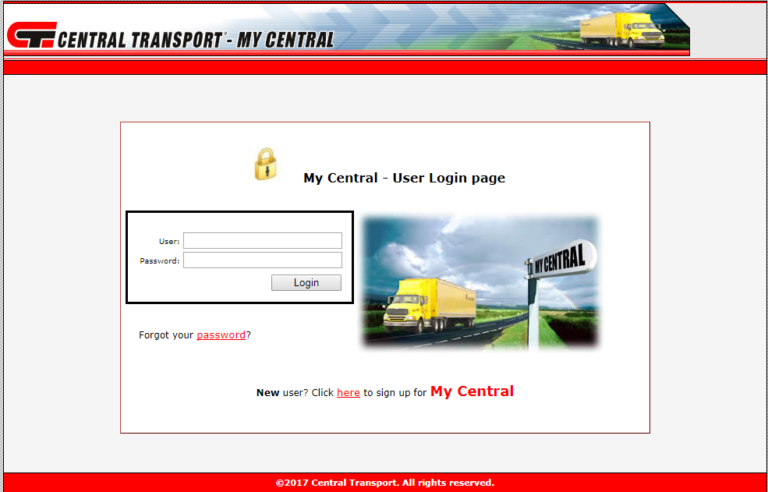
-
Click on ‘Invoice Correction’ located on the top right of the screen.
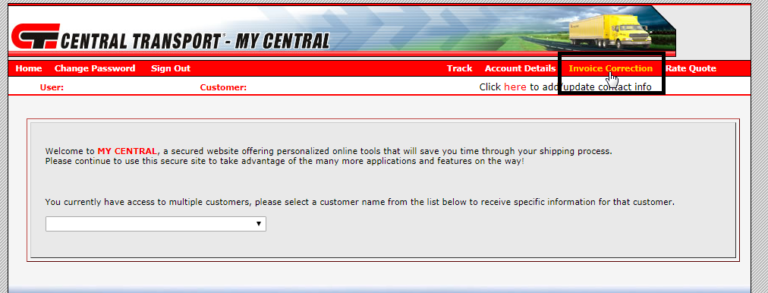
- Your account number will be displayed in the area below:

How to Connect within EZ Loader TMS:
- Check to confirm the Carrier Profile of the LTL Carrier you want to integrate is added as a Carrier within your EZ Loader account.
- To add the Carrier > click +Add New at the top right of your EZ Loader account > New Carrier
- In the New Carrier window, add the basic Carrier information. Click the blue Save button to save the Carrier profile
- Connect the Integration by following the steps below:
- An Admin User group permission is required
- Navigate to your initials at top right > click Settings
- Click Integrations
- Click LTL Integrations to reveal a drop-down menu
- In the drop-down menu, select Available LTL Integrations
- Select the LTL Carrier API you wish to connect
- Type in the credentials as seen in the screenshot below and click Next.

- After clicking the Next button, read the LTL Portal Integration Acknowledgment fully and click Agree & Save.

- Contact your EZ Loader TMS Account Manager or Support Team if you have any questions and we're happy to help!